Jewelry photography guide
How to Calibrate Your Monitor for Jewelry Photo Editing
Every decision in jewelry retouching is a judgment made by eye on a screen: whether the gold is warm enough, whether the white metal has a cast, whether the gradient on a band is smooth. If the screen is wrong, every judgment is wrong, and the error only shows when the client opens the file on a different monitor or the catalog comes back from the printer. Monitor calibration is the first lesson of the course’s Computer and Software chapter, before tethering, Helicon Focus and Photoshop. This guide explains what calibration does and how to do it.
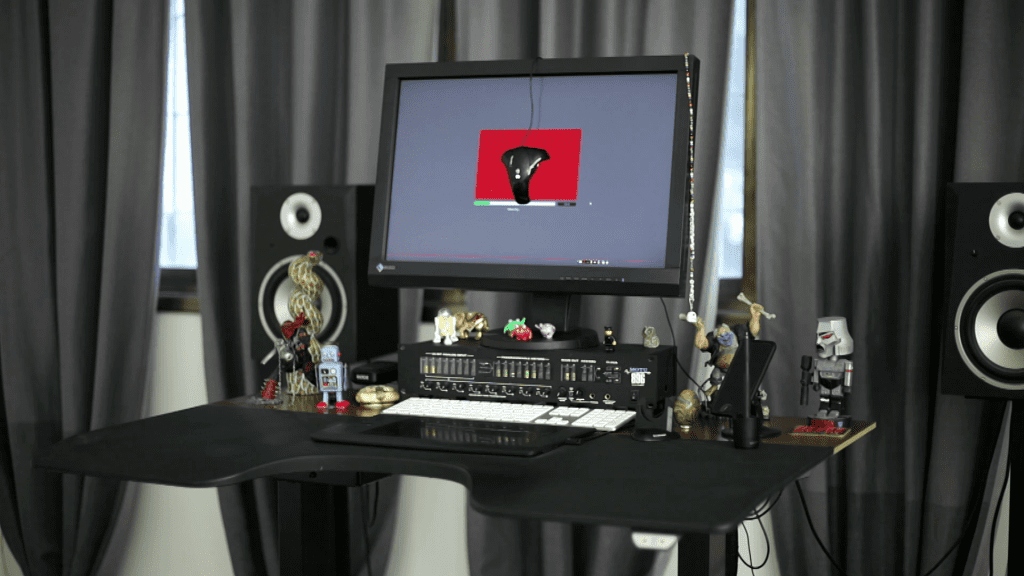
What goes wrong without calibration
Monitors leave the factory too bright and usually too blue, and they drift as they age. On a screen that is too bright, a retoucher darkens images that are actually correct; on a screen that is too blue, gold is warmed until it turns orange elsewhere. Jewelry makes the problem worse than most subjects. White metal is close to neutral gray, so a small cast on the monitor becomes a visible tint in the file, and the fine gradients on polished surfaces reveal any unevenness in how the screen handles tone.
What calibration sets
- White point: the color of white, usually set to D65 (6500 K) for screen work. It decides whether neutral metal looks neutral.
- Brightness (luminance): the intensity of white, typically set well below the factory default so that the screen matches how prints and other screens look. Around 100 to 120 cd/m2 is the common target for a normally lit room.
- Gamma or tone curve: how mid-tones are distributed between black and white, usually gamma 2.2 or the sRGB curve. It decides whether gradients on metal look smooth and whether shadows hold detail.
- Color: the measured behaviour of the screen’s red, green and blue, stored as an ICC profile so Photoshop can display colors accurately.
How a hardware calibrator works
Calibration by eye is not calibration; the eye adapts to whatever it sees. A hardware calibrator, a small colorimeter that sits on the screen, measures a series of color patches the software displays and compares them with known values. The software then adjusts the monitor, either through its own controls or through the graphics card, until the measured white point, brightness and tone curve match the targets, and writes an ICC profile that describes whatever the monitor cannot correct. The whole process takes a few minutes and is repeated every few weeks, because screens drift.
Setting up the room
A calibrated monitor is only accurate in the conditions it was calibrated for. The retouching room should have stable, moderate light, no direct light on the screen, and neutral surroundings: a bright colored wall behind the monitor shifts how the eye sees color on it. Screen brightness and room brightness should be balanced so the screen is neither the brightest thing in the room nor washed out. A dark gray desktop background and a neutral interface, rather than a colorful photograph, keep the eye from adapting to the wrong reference.
Two monitors and the retouching tablet
Many retouching workstations run two screens: one for the image, one for panels. Only the image screen needs to be of high quality and calibrated, but both should be set to the same white point so the eye does not keep adapting between them. The tablet does not affect color, but it is part of the same setup: a calibrated screen and a pressure-sensitive pen are the two tools that make the low-opacity brushwork in jewelry retouching possible.
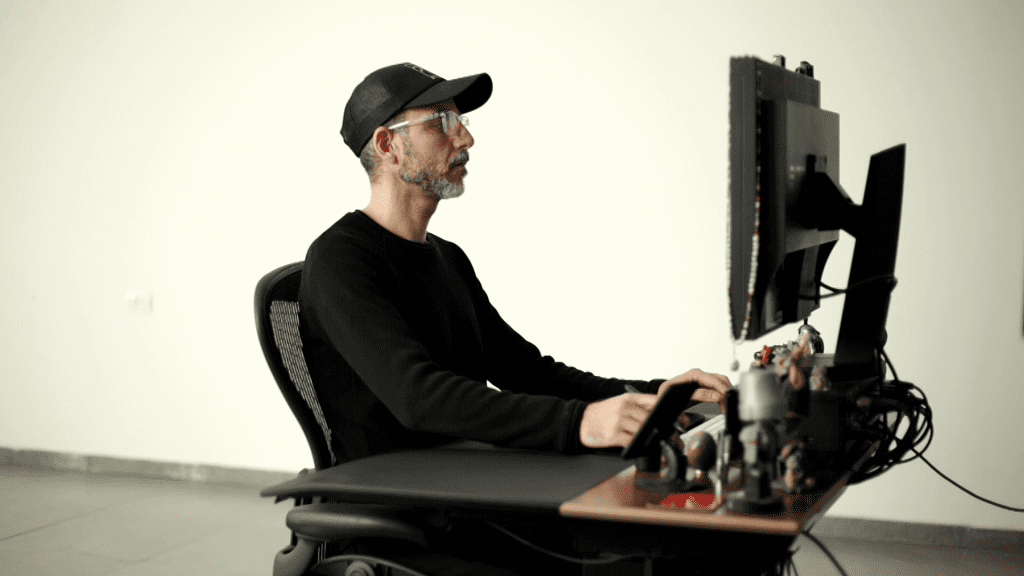
Checking the result
After calibration, open a known reference: a neutral gray gradient should show no color shift from black to white and no visible steps; a file with a known neutral background should look neutral. A calibrated screen does not make a monitor better than it is, and an inexpensive panel will still have a smaller gamut and less even tone than a professional one, but it will be predictable, which is what retouching needs.
Common mistakes
- Calibrating once and never again: screens drift; repeat every few weeks.
- Leaving brightness at the factory setting: images retouched on a very bright screen come out too dark everywhere else.
- Trusting the monitor’s built-in picture modes: they are designed for video and games, not for accurate color.
- Working under changing daylight: calibrate and retouch under the same stable room light.
- Judging gold on an uncalibrated laptop: warm metals are the first to go wrong when the white point is off.
Set up the whole workstation
The Computer and Software chapter of Mastering Jewelry Photography covers the four tools the workflow depends on: monitor calibration, shooting tethered, Helicon Focus and an introduction to Photoshop, before the practical and retouching chapters put them to use on real rings, bracelets, earrings and necklaces. 49 lessons across 12 chapters, one-time payment of $99, lifetime access.
Related guides
- Jewelry Retouching in Photoshop: A Professional Workflow: from selections to sharpening
- Tethered Shooting for Jewelry Photography: a practical workflow
- Changing Jewelry Metal Colors in Photoshop: yellow, rose and white gold from one capture
About the author
Ivan Moshe is a commercial photographer and high-end retoucher who has photographed products for the advertising industry for more than 15 years, from his studio in Tel Aviv’s Diamond District. He was selected for Lürzer’s Archive 200 Best Ad Photographers Worldwide in 2021/22 and 2023/24, and he teaches Mastering Jewelry Photography, the online course these guides are drawn from.